
How schedules work
Each activity has one weekly template: for each weekday, the start times and the number of seats at each time. From that template HarborBook creates the real departures, one for each date and start time. Guests only ever book these departures.
The template applies to every week. There are no start and end dates for a season. To change a single date, use date overrides and blackouts.
You can edit the schedule in two places. Both edit the same schedule.
Set the schedule on the activity
- Go to HarborBook → Activities and open the activity. Save it once first if it is new.
- Open the Availability tab.
- In Weekly Schedule, switch each day you run to Open.
- Type a start time, for example 09:00, or pick it from the time picker. Times use the 24-hour clock.
- Set the seats for that time with the capacity buttons.
- Click + Add Time Slot for each extra start time on that day.
- Click Save Schedule.
A message confirms how many departures were created and up to which date.
Set the schedule on the Availability screen
- Go to HarborBook → Availability.
- Click the activity in the Activities list on the left.
- Under Weekly Schedule, tick each day you run.
- Set the start time and seats (“pax”) for each departure. Click Add time slot for more times, or the bin icon to remove one.
- Click Save & Regenerate Slots.
The same screen also has Special Date Overrides and Global Blackout Dates, which are explained in Block a date or change one day.
Capacity of a departure
The seats you set for a time are the capacity of each departure at that time. They must fit the activity’s passenger limits on the Duration & Capacity tab: a capacity below Min Passengers is raised to it, and a capacity above Max Passengers is lowered to it when a maximum is set. A capacity of 0 means the departure is closed. A new time starts at Max Passengers, or at 10 when there is no maximum.
The end time of each departure is the start time plus the activity’s duration. More about seats in Capacity and preventing overbooking.
How far ahead departures exist
Departures are created from today up to the Slot Generation Window under HarborBook → Settings → Booking Rules. The default is 90 days, and the range is 1 to 365.
Departures are created or updated:
- when you click Save Schedule or Save & Regenerate Slots;
- when you click Update on the activity;
- once a day by a WordPress scheduled task, which also adds the newest day at the end of the window.
Changing the Slot Generation Window does not create departures straight away. Save the schedule, or wait for the next daily run. The daily task relies on WordPress cron, see WordPress cron and scheduled tasks.
How far ahead guests can actually book is a separate setting, the Customer Booking Window. See Lead time, cutoff and booking window.
Changing a schedule that has bookings
When you save a new schedule, departures that already have bookings are kept as they are. Their bookings are not moved or cancelled and guests are not emailed. Departures without bookings that are no longer in the schedule are closed. If you lower the capacity below the seats already booked, the bookings stay and the departure shows as full.
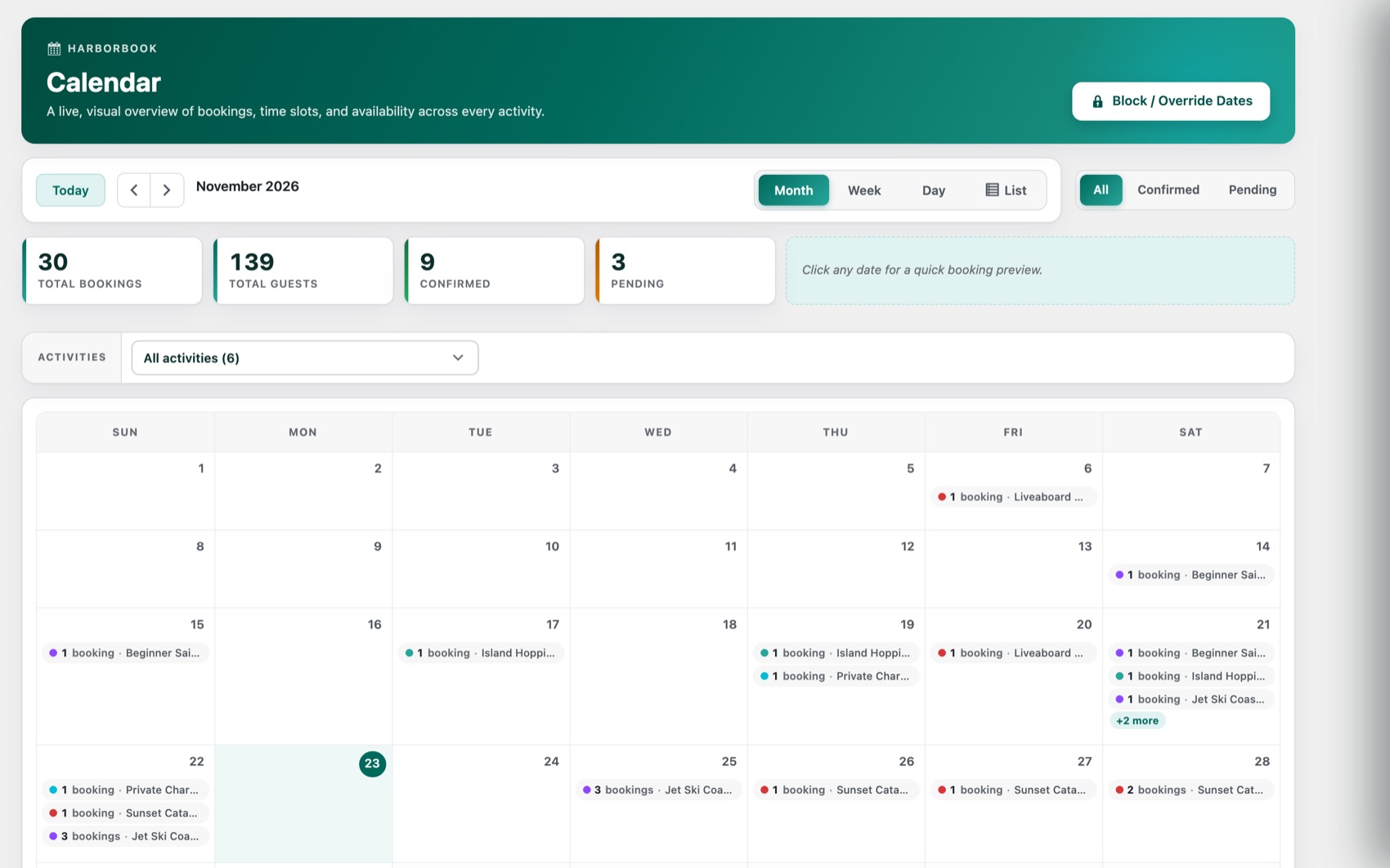
You can check the result in the HarborBook calendar. The Day view shows every departure with its booked and total seats.